On Android: Share into your library, open from your home screen
Most saves happen on your phone. A link in a message, a paragraph you highlighted, a PDF from a friend. If you have to wait until you are at a desk, a lot of that never gets saved.
On Android you can install ReadMeliora to your home screen and send things in through Share. Reading still happens in the same library as everywhere else.
Home screen, not another tab
Install from your browser and open the app from an icon. You are not hunting for a tab in a stack of thirty. Inbox and the reader open full screen.
Settings → Account has steps for Chrome on Android, Firefox on Android, and iPhone if you use that too.
Share into the library
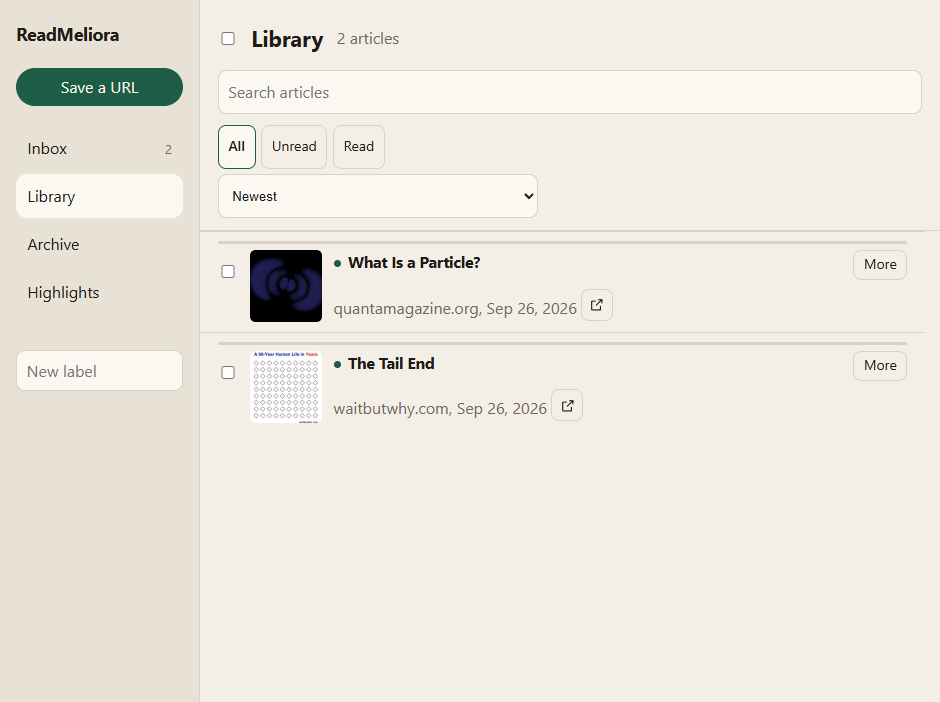
Use Share from Chrome, a feed app, or anything else that supports it. Send a URL, a bit of selected text, or a file. The item shows up unread beside clips and forwards you already had.
Shared while logged out? You get a receipt first. Sign in and it saves. You do not need to share again.
Snippets
Share sometimes gives you only a few lines and no page URL. We store that as a snippet. It opens in the reader like any other short piece.
Offline, within limits
This is not an offline-first app. Search, new saves, and pulling down the full library still need the network. What you have already opened on the phone can stick around on the device.
Under Settings → Storage you choose how much space to use. Inbox, Library, and Highlights can sync down automatically inside that cap. Pin an article in the reader if you want to keep its copy until you unpin it.
Worth doing once
Share one link from an app you already use. Open it from the home screen icon. New to ReadMeliora? The “Finally... an Omnivore Alternative” post on the blog covers the rest.