Save the sentence, not the tab
A “read later” tab is usually a bookmark you feel bad about. You have not read it yet. You only promised yourself you might.
Often the part you wanted was smaller: one paragraph, one definition, one quote. The extension lets you save that directly.
Not every page needs the whole thing
Long threads and busy layouts hide the bit you noticed. Select the text, then save. You still get a readable article in ReadMeliora, with a highlight where you started.
Page, selection, screenshot
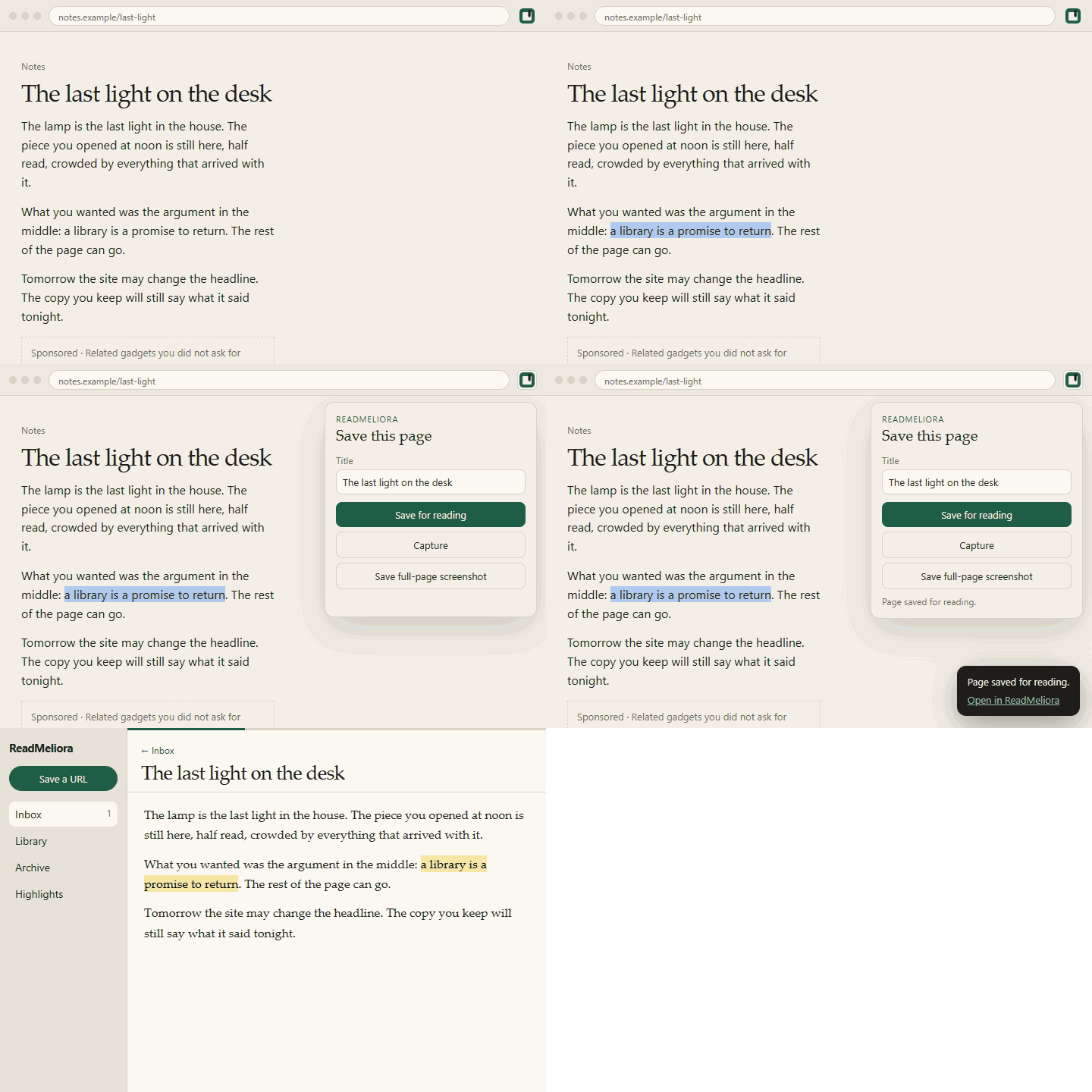
Save the full page when you want all of it. Save a selection when you do not. Save a screenshot when the layout or image is the point. Ads and nav bars stay on the original site.
In your library
The piece opens in the reader with the usual type controls, focus mode, and dark mode. Selection saves often show up pre-highlighted. Add notes from there, or find the mark later under Highlights.
We went deeper on highlights in “Highlights that stay with the piece” on the blog.
Setup
Install the Chrome extension using docs.readmeliora.com, then add an API key from Settings → API. Saves require a key so they land in your account.
New here?
Read “Finally... an Omnivore Alternative” on the blog if you want the tour first. Then save one highlighted sentence from whatever tab you have open and read it in the app.